editor & librarian for the oscar

<
0.7.7OXIDEFREE
>

download

The OSCar editor and librarian

Back up, name, edit and invent sounds for your OSCar from Logic Pro. With the Tauntek MIDI board, every knob acts live and the plug-in shows exactly what the OSCar is playing.

Download for Mac
Version
0.7.7
Formats
AU for Logic Pro, VST3 and standalone app
System
macOS 11 or later, Apple silicon and Intel
Synth
OSCar with the Tauntek MIDI board. With the original MIDI, everything works except live editing.
Price
Free
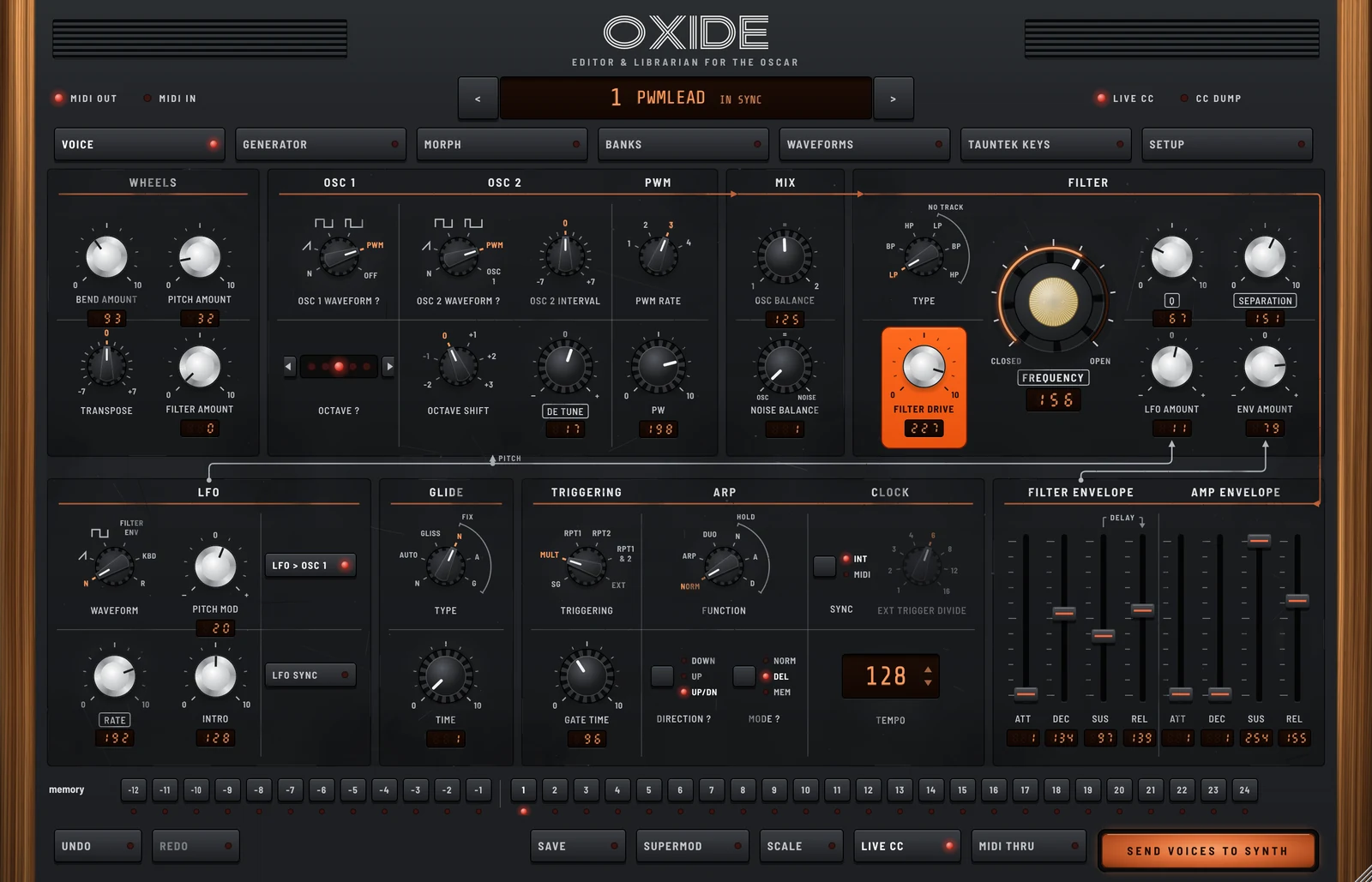
OXIde, Voice page
Every setting of the chosen voice. Each knob goes to the OSCar as a CC, and everything can be automated from the DAW.

what's new

Latest versions

0.7.7
latest version

0.7.7: MIDI Thru passes CCs and program changes; listen on oscillator 1, 2 or both. MIDI Thru let only notes and pitch bend through: a Logic modulator on CC 30 (the cutoff) moved the OSCar when sent to it directly, but not through the plug-in. It now passes CCs, program changes and aftertouch too, on the OSCar's channel. A program change makes the editor follow the OSCar to that voice. What the OSCar sent itself and comes back through the DAW (its notes, its CCs, its program changes) isn't sent back to it: the same program again would reload the voice and lose what was turned on the panel.

On the Waveforms page, *Listen on the OSCar* is now three buttons under the screen on the right: *Osc 1*, *Osc 2* and *Osc 1 + 2*. Each sets that oscillator of the selected voice (Wave 1, Wave 2, or both) to the waveform shown, sends the waveforms if they were edited, and makes the OSCar play it at once. The lit button tells which oscillator plays the waveform shown.

0.7.6: the space bar plays Logic, even with the plug-in in front. The plug-in's window no longer keeps the keyboard: the space bar, Return, the arrows and the other key commands go to the DAW whatever you clicked in OXIde last. Before, a clicked button took Return (and clicked itself again), the lists and menus took the arrows, and the Setup page's texts took every key. Their text can still be selected and copied with a right-click.

0.7.5: new versions offered at launch. When OXIde opens (the app, or the plug-in's window) and a new version is out, a tile says so: the version, what it brings in a few words, a link to the full notes, and *Update now*, which replaces the app, the AU and the VST3 on this Mac in one go. The app can then relaunch itself; a DAW loads the new plug-in when you reopen it. *Later* puts it off until the next launch, *Skip this version* for good. A version found once is offered again at each launch until it is installed, even without a connection, and the plug-in looks for new ones at most once an hour.

0.7.4: Listen on the OSCar. The plugin can't see the waveform chosen on the OSCar's panel, so after sending it could only rebuild the waveforms the voice plays in the plugin. A new button on the Waveforms page, *Listen on the OSCar*, sets Wave 1 of the voice to the waveform shown, sends the waveforms if they were edited, and makes the OSCar play it at once (Live CC on). When the voice plays no user waveform, sending now says what to do.

0.7.3: sent waveforms heard at once, for real. Vincent found that after sending the waveforms, the OSCar kept the old sound until the waveform was chosen again. Its firmware only rebuilds a user waveform when an oscillator's waveform number changes, so sending the same number again (0.7.2) did nothing. Now the oscillators that play a user waveform go to Triangle for a moment, then back (Live CC on, and in the sound recall). Without Live CC, the plugin says how to do it on the OSCar. The waveform buttons go from -12 to -8, left to right, as on the OSCar's keyboard and the memory row.

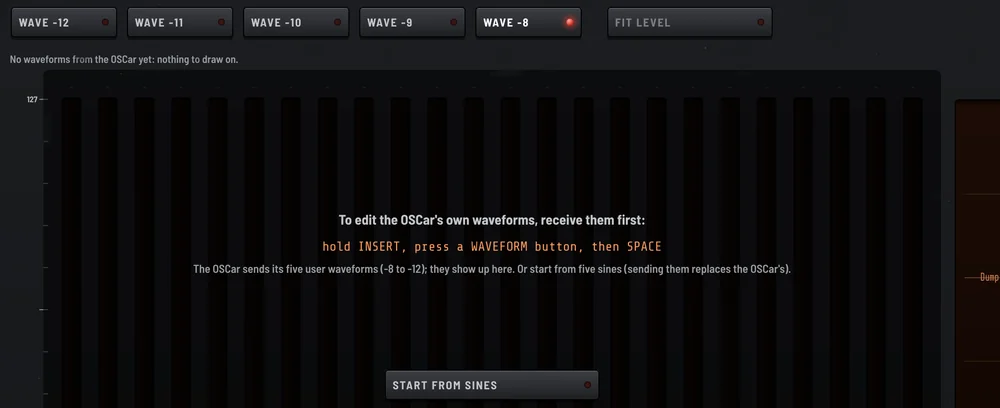
0.7.2: the Waveforms page, fixed with Vincent's tests. The five waveform buttons could not be clicked before a dump: they always can now. Without the OSCar's waveforms, the page says how to get them (INSERT + a WAVEFORM button + SPACE) or starts from five sines. The bars go up to 127 and the preview shows what the OSCar plays, computed the way its firmware does, in red where it saturates; *Fit level* scales a waveform so it just fits, as the OSCar does with its own, and sending offers it for the ones that saturate. After sending, Wave 1 and Wave 2 go again (Live CC on), so the OSCar rebuilds the waveform it plays: it only builds a user waveform when it is chosen.

0.7.1: RANDOM becomes SUPERMOD, and a SAVE button. SUPERMOD, since it does LFO waves as well as randoms: the button, its strip and the right-click menu now speak of modulations; projects keep their settings. New SAVE button, next to SUPERMOD, with two tabs. *In the OSCar*: pick a memory, *Store in this memory* sends the voice whole (SUPERMOD and MORPH hold meanwhile) and shows the keys to press on the OSCar, VOICE, STORE and the number, since no MIDI message can store a voice; *Done* and the plugin knows that memory holds it. Only that memory changes. *Whole bank...* still writes all 36. *On the computer*: save the voice, the bank or a .syx file, and open the folder.

0.7.0: RANDOM and SCALE, played from the bottom. RANDOM and SCALE leave the header: two buttons next to Live CC open their strips where the memories are. The RANDOM strip has SHAPE, a RATE knob with SYNC (a division of the DAW's tempo, or free from 10 s to 10 ms), LOOP (off, or 2 to 64 steps), New loop, MODE (bipolar or unipolar), ACTIVE and Clear all. A control turned up follows the shape as drawn, turned down upside down, whatever the shape; bipolar, it moves either side of its value, unipolar only on one side. Every control that moves lights up along its scale, all the time: a glowing arc from its own value to where it plays, with a bright tip (orange turned up, amber turned down); in the layer, a dim arc shows the whole range it sweeps. Right-click a knob, a fader or a switch: switch its random off (it is kept, its LED goes dark) or on again, remove it, go back to the saved value, or switch off or remove every random. ACTIVE off switches all of them off at once, amounts kept; the project remembers both. The SCALE strip has SCALE, ROOT and a one-octave keyboard lighting the scale's notes (click a key for the root). A double-click on a knob or a fader puts it back where the voice was when last saved (project opened, sent, dumped).

0.6.5: recall, always, ask first or never. Recalling the project's sound replaces what the OSCar plays, a sound just made on its panel and not stored included. So it is now a choice on the Setup page, kept on this computer: *always*, *ask first* (the default) or *never*. With *ask first*, the plugin's window asks when a project opens, or as soon as you open it: *Recall the project's sound* or *Keep the OSCar's sound*; nothing is sent until then. *Recall now*, next to it, sends the selected voice whole at any time.

0.6.4: the project's sound comes back, and waveforms received as they are. A new option on the Setup page, on by default: *Recall the sound when the project opens*. When a project opens, the OSCar gets the selected voice exactly as saved in the project, whatever its memories hold: all its values as CC, the tempo, and the user waveforms if the voice plays one. So a sound changed after the last save comes back as saved. Nothing is written into the OSCar's voice memories.

Waveforms dumped by the OSCar could be refused as "damaged by a text-mode copy (CR/LF)": some real harmonic levels read like that damage. Data straight from MIDI is never checked for it any more (only a copied file can be damaged that way), and the check on files is stricter, so it no longer mistakes such levels for damage.

0.6.3: Use channel, and strokes across the harmonics. When the OSCar sends on another MIDI channel, a Use channel button appears left of the voice display: one click and the plugin takes the OSCar's channel. (The OSCar's own channel can only be set on the OSCar, SPACE + a key from 1 to 16: its firmware takes no MIDI message for it.) On the Waveforms page, a quick stroke across the bands now draws every band it crosses, on the line between, and carries on to the first and last band when the mouse runs past them.

0.6.2: a safer, simpler Morph. The Morph page has a MORPH switch, off at start: off, the crossfader and its DAW automation do nothing. On, the OSCar plays the blend of A and B (as CC, Live CC on) and no voice changes any more: Keep the blend writes it into the selected voice, in one undo step. Edits of A or B are heard in the blend at once. Turning MORPH off, choosing another voice or generating one gives the OSCar the selected voice back; the display shows MORPH ON meanwhile. Each end has a single window: a click opens the list, with the selected voice first, and the voice chosen there is loaded (with MORPH on, the sound glides to it). The arrows, Selected voice and Load buttons are gone.

0.6.1: the OSCar on another channel. When the OSCar sends on a MIDI channel other than the plugin's (SPACE + a key from 1 to 16 on the OSCar changes it, easily by mistake, and the Tauntek board keeps it after power-off), the display shows OSCAR ON CH and its number, and a message says how to put it back. Unless it is in omni mode, the OSCar doesn't hear the plugin then.

0.6.0: RANDOM and SCALE. Two new functions at the top of the window, as in MIFM1. With RANDOM lit, turning a knob or a fader on the Voice page sets how much it moves instead of its value (Transpose, Osc 2 Interval and Octave Shift too). What it follows is chosen next to it, all in one place: SHAPE, S&H (a new value at each step: up, new values; down, values that come back the same every loop), SMOOTH (gliding from one random value to the next, looped too when turned down) or one of MIFM1's LFO waves (sine, triangle, saw, ramp, square, pump, stairs, bounce, clave, rises, falls, zigzag: one LFO for every control, upside down when turned down); RATE, from 1/32 to 16 bars, on the DAW's tempo and bars; LOOP, any length from 2 to 64 steps. The further, the wider; back to the middle (or a double-click), none, and the control gets its own value back. Press RANDOM again to turn the knobs as usual: a small LED marks each control that moves (red: up, amber: down). Right-click on RANDOM: the tempo without a DAW, new loops, clear them all. The waves and glides go out as the values change, at most 400 CC a second. The voice itself never changes: the OSCar gets the values as CC (Live CC), and saved projects keep the randoms and their loops. SCALE and ROOT put Transpose and Osc 2 Interval on a scale (major, minor, the modes, harmonic and melodic minor, pentatonics, blues, whole tone, hirajoshi, phrygian dominant), their randoms too, and move the notes played through MIDI Thru to the scale.

0.5.5: a bolder drive plate. The Filter Drive plate is a deeper, livelier orange with a dark rim, and it now runs from above the knob to below its value window, which sits inside it. The amber drive LED is gone.

0.5.4: lights on the filter. A thin LED band runs along the travel of the big Frequency knob: it lights up to the cutoff and glows brighter as the filter opens. The Filter Drive knob sits on an orange plate, its scale and name printed in reverse, with an amber LED that glows harder as you add drive.

0.5.3: Load A, Load B, and an icon. On the Morph page, choosing a voice for A or B no longer changes the blend: the voice waits until you press Load (its LED lights while it waits), so the fader never jumps to a voice you were only browsing. If a blend is going on when you load, the sound glides to the new pair at the fader's position, over the smoothing time. Each side shows which voice is loaded. And OXIde has its own icon: a glowing copper pad, in the Dock, the Finder and on the web page.

0.5.2: updates into protected folders. When the plug-in was installed with your password (the AU in /Library/Audio/Plug-Ins/Components, from the disk image), the update now asks macOS for that password once, in its usual window, and installs there too. Before, the AU was left on the old version with "no permission to write".

0.5.1: a smooth display. Touching a button or turning a knob no longer redraws the whole window: only what changed is drawn again, and the fonts are loaded once instead of on every redraw. That ends the flicker and the labels that vanished on some Macs, and the interface follows the mouse much more closely.

Softer copper. The orange buttons and pads glow with a gentle gradient and a small halo, set in a dark bezel. On the Generator page, the big knob now shows its value in full beside its name, prints the range above 75 % in orange, and Generate and the history buttons sit lower down; Previous and Next carry printed arrows.

0.5.0: OXIde. The plug-in is now called OXIde, with a new logo. Updating from inside the plug-in puts OXIde where OSCar Editor was and removes the old copies; your settings, banks, voices and backups move to Documents › OXIde. If both names end up side by side (after installing the disk image by hand, say), the plug-in offers to move the old ones to the Trash. In Logic, OXIde is under OSCarTools, and projects made with OSCar Editor open as before.

A Voice page that reads like a signal chart. The window is taller (1400 × 900 at 100 %). On the top floor, the sound: the wheels, then oscillators → mix → filter. Below, what shapes it: LFO, glide, triggering, arpeggiator, clock, and both envelopes side by side, the amplifier's last. Printed lines show the way: the audio path in orange along the titles, the modulations into ENV AMOUNT, LFO AMOUNT and the oscillators' pitch, and the filter envelope's DELAY from Sustain to Release. On each row, every name and every value readout sits at the same height.

- The waveforms are knobs with the panel's positions (N, ramp, square, pulse, PWM, off); waveforms −3 to −12 show their number under the knob. - Function, glide type and filter type are six-position knobs, as on the panel: the last three, under an arc, are HOLD, FIX and NO TRACK. - The keyboard octave has its five LEDs. The envelopes are faders again, four side by side for each. - The ARP column holds Function, Direction and Mode; the CLOCK column holds Sync, the external trigger divide and the tempo.

The other pages use the extra height: a larger morph preview, the generator's controls in the middle of their columns, a taller user guide on the Setup page.

Also new since 0.3.0

- Morph A ↔ B: a page with two voices and an Octatrack-style crossfader. Knobs glide from A to B, switches change half way; Smoothing turns a sudden move into a glide. With Live CC the OSCar follows live, the plug-in only sending the CC that changed. Keep the blend or Undo it in one step; the fader can be automated in Logic (Morph A-B). - Init: a plain starting sound to build a voice from scratch (Banks page, and at the top of the voice menu). - Memories in the keyboard's order: -12 … -1, then 1 … 24, as on the OSCar's keys. - The panel's own words and scales: OSC 1 WAVEFORM, DE TUNE, OSC BALANCE, Q, SEPARATION, PITCH MOD, TRIGGERING, GATE TIME… with − / 0 / + on the bipolar knobs. They stay in English in French mode, as on the synth. - A panel with a past: the printed ink is lightly worn in places; the controls stay clean.
Once installed, the plug-in tells you itself when a version comes out: an Update button appears at the top of its window. One click, then restart Logic.

guide

The new features in practice

Everyday scenes with OXIde, step by step. To hear what you set, Live CC must be on, at the bottom of the window.

the project and the oscar

I reopen my track the next day

Last night the track was done. This morning, someone played with the OSCar.

  1. Open the project in Logic, then OXIde's window.
  2. The plug-in asks "Recall the project's sound?": answer "Recall the project's sound".
  3. The OSCar plays the project's exact sound again: every value, the tempo, and the user waveforms if the voice plays one.

Its memories stay as they were: the sound is played, not stored in the OSCar.

I open my session while tweaking the OSCar

You've got a great sound on the synth, not stored yet.

  1. When asked "Recall the project's sound?", answer "Keep the OSCar's sound": nothing is sent.
  2. Store your sound on the OSCar with STORE, in a memory you can overwrite.
  3. To get it in the plug-in: hold INSERT, press VOICE then SPACE, and click that memory's number.

Until you answer, the plug-in sends nothing: your sound is safe. And every receive keeps a backup of the voices before it.

Decide once and for all

Setup page, menu "Recall the project's sound when it opens":

  • always: the OSCar gets the project's sound as soon as it opens, no question asked;
  • ask first, the default: the plug-in waits for your answer;
  • never: nothing is sent when it opens, handy if you mostly play the OSCar by hand;
  • "Recall now", right next to it, sends the selected voice to the OSCar whenever you like.

The choice applies to all your projects.

The OSCar ignores the plug-in

The knobs move in OXIde, but the OSCar's sound doesn't change.

  1. Play a note on the OSCar. If an orange "Use channel N" button shows up at the top, left of the display, the OSCar and the plug-in aren't on the same MIDI channel.
  2. Click it: the plug-in moves to the OSCar's channel and everything responds again.
  3. Or change the channel on the OSCar: hold SPACE and press a key from 1 to 16. No MIDI message can do it instead.

Tauntek CCs only get through on the right channel, even in omni mode. It also needs cable 2, from the OSCar to the interface.

save

Store my sound in one of the OSCar's memories

  1. Click SAVE, at the bottom of the window, tab "In the OSCar".
  2. Pick the memory: at first, the same number as the voice.
  3. Click "Store in this memory": the OSCar plays the voice, SUPERMOD and MORPH hold while you store.
  4. On the OSCar, press the keys shown, VOICE, STORE, then the number. Then click "Done".

Only that memory changes. No MIDI message can store a voice: hence the keys to press. "Whole bank..." writes all 36 voices at once.

Keep a copy on the computer

SAVE, tab "On the computer":

  • "Save voice...": the selected voice, in Documents > OXIde > Voices;
  • "Save bank as...": the 36 voices with their names, in Documents > OXIde > Banks;
  • "Export .syx...": the 36 voices for other editors, without the names;
  • "Open folder": it's all there, with the automatic backups.

The Logic project keeps its bank too: open it again and your 36 voices are back.

supermod

A filter that breathes in time

  1. Turn on Live CC and click SUPERMOD, at the bottom of the window.
  2. In the strip: SHAPE SINE, SYNC on, RATE at 1/1.
  3. On the Voice page, drag the Frequency knob up to 40.
  4. Press play in Logic: the filter opens and closes every bar, and the lit arc around the knob follows the movement.

The voice itself doesn't change: the movement rides on top, as CC. Click SUPERMOD again to get the knobs back.

A pumping bass

  1. Turn Frequency down a little, then click SUPERMOD.
  2. In the strip: SHAPE PUMP, SYNC, RATE at 1/4, MODE UNIPOLAR.
  3. Drag Frequency up to 60.
  4. On every beat, the filter drops back to the knob's value and swells up again: the sidechain effect, no compressor.

Try it on Filter Drive too, set low: then the volume pumps.

A pad that lives on its own

  1. SHAPE SMOOTH, SYNC off, RATE turned to 4.00 s (left is slower), LOOP OFF.
  2. A little SUPERMOD on several knobs: PW 20, De Tune 10, Separation -15, Osc Balance 25.
  3. Each knob glides slowly to a new value, each its own way: the sound moves and never repeats.

With Sync off, RATE goes from 10 ms to 10 s, free of the tempo.

Tame, mute, erase

  • Right-click a knob, a fader or a switch: "Switch its modulation off" (it stays set, its LED goes dark), "Remove its modulation" or "Back to the saved value".
  • ACTIVE, in the SUPERMOD strip: off, everything stops at once, great for a break; back on, everything starts again.
  • CLEAR ALL: no more modulations.
  • Double-click a knob, layer closed: it goes back to the voice's saved value.

scale, morph and waveforms

Stay in key without thinking

  1. Click SCALE: pick a scale (MAJOR, DORIAN, BLUES…) and its root on the little keyboard.
  2. Turn on MIDI Thru: the notes from your controller keyboard move to the nearest note of the scale. Even wrong notes land right.
  3. Transpose and Osc 2 Interval only take notes of the scale, their modulations too.

Notes played on the OSCar's own keyboard don't go through the plug-in: they stay as they are.

A little random riff that comes back

  1. Click SCALE: MINOR, and A on the little keyboard.
  2. Click SUPERMOD: SHAPE S&H, SYNC, RATE at 1/16, LOOP at 16.
  3. Drag Transpose up to 60, then hold a note (or start the arpeggiator).
  4. The 16 steps come back exactly the same, always in the scale. "New loop" rolls another one; LOOP OFF changes note on every step.

Go from one sound to another, live

  1. Morph page: pick Voice A in the left list, Voice B in the right one.
  2. Turn MORPH on: the display shows MORPH ON and the OSCar plays the blend.
  3. Move the fader, or automate it in Logic (parameter Morph A-B). No voice is changed.
  4. Like a blend? "Keep the blend" writes it into the selected voice (Undo takes it back). Turn MORPH off to go back to the voice.

Draw a waveform in one stroke

  1. Waveforms page: first receive the OSCar's (INSERT, a WAVEFORM button, then SPACE), or click "Start from sines".
  2. Pick a waveform, from −8 to −12, and draw a line across the bars: every bar you cross takes the line's height, even when you go fast.
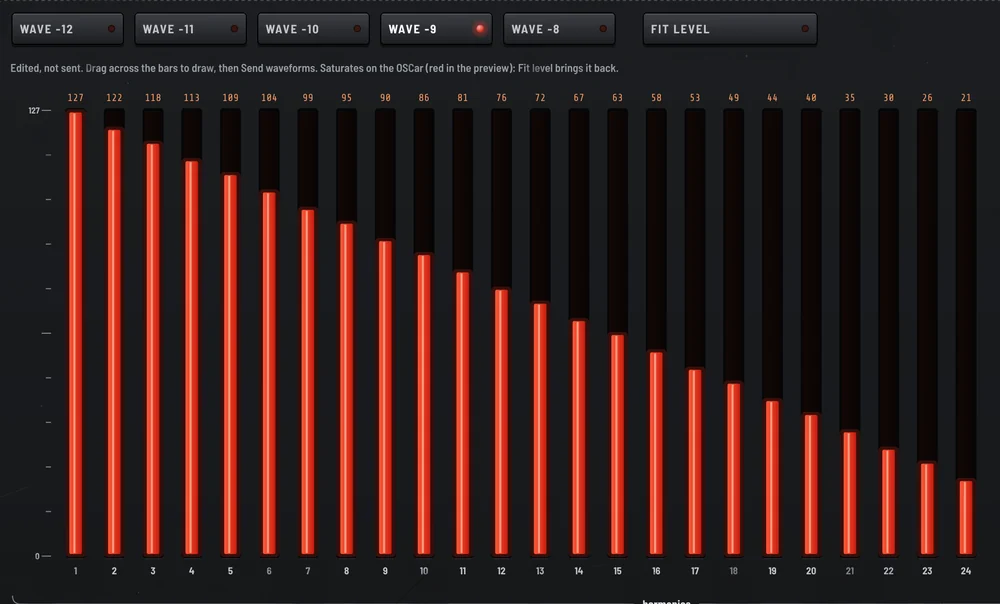
  3. A falling slope gives a bright sound, close to a sawtooth; a zigzag, every other bar, a hollower sound, square-like.
  4. Red in "What the OSCar plays"? It saturates: "Fit level". Then "Send waveforms".

With Live CC on, the OSCar plays the new waveform right away if the voice uses it. The illustrated tutorial is just below.

tutorial: waveforms

Draw your own waveforms for the OSCar, in five steps.

First, how the OSCar keeps its waveforms (kitchen version)

The recipe box

The OSCar has five recipe cards kept in a box: waveforms −12 to −8. They stay there even when it's off. It also has a draft, waveform "0", scribbled next to it with its OSC1 and OSC2 keys: a draft, not a card.

The cook

Each oscillator is a cook. Asked for a waveform, it reads the card once, bakes its cake (computes the wave), then serves that cake until it's asked for something else.

OXIde the postman

"Send waveforms" is OXIde as a postman: it swaps the five cards in the box at once (it can't deliver just one). But the cook doesn't look in the box: it keeps serving the old cake.

Order again

To make it bake again, order something else for a second, then your waveform: it reads the card again, the new one. OXIde does it for you (Triangle, then yours)… as long as it knows what the cook is baking. If you ordered it on the OSCar itself, OXIde didn't see: click LISTEN ON THE OSCAR, and OXIde places the order.

The mould

The cake has to fit in a mould: if the harmonics add up to too much, it overflows and the wave gets cut (the red in "What the OSCar plays"). FIT LEVEL scales the recipe down so it fits, as the OSCar does with its own cards.

  1. 1

    Receive the OSCar's waveforms

    On the OSCar, hold INSERT, press a WAVEFORM button, then SPACE: it sends its five user waveforms, which show up on the Waveforms page. No OSCar at hand? "Start from sines" gives five sines to change; sending them will replace the OSCar's.

    The Waveforms page before the OSCar's waveforms are received
  2. 2

    Pick a waveform and draw

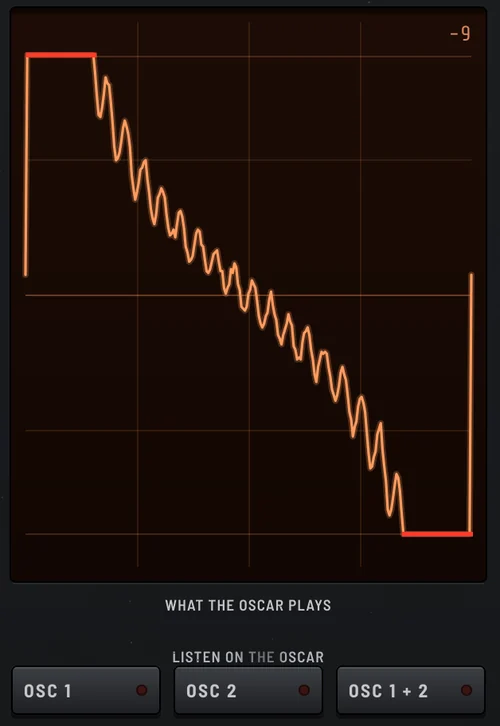
    Click one of the waveforms, WAVE -12 to WAVE -8, then draw a line across the bars: every harmonic you cross takes the line's height, even when you go fast. The bars go from 0 to 127; 127 is a harmonic alone at full level.

    A waveform drawn: a falling slope
  3. 3

    Look at what the OSCar plays

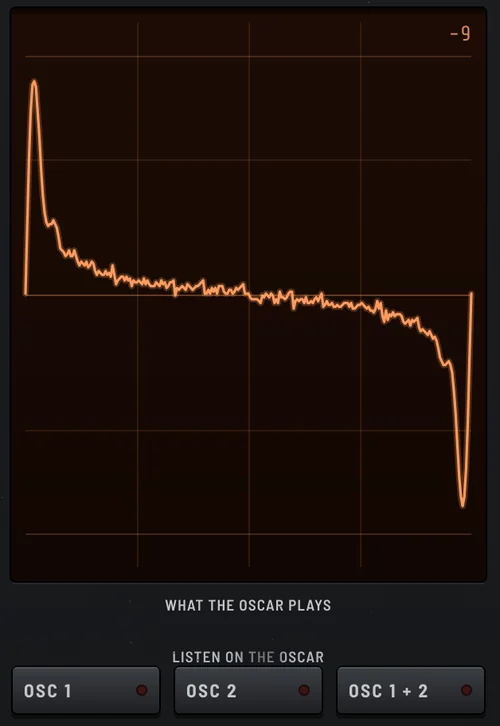
    The screen on the right shows the waveform as the OSCar computes it. Red means it saturates: the sum of the harmonics is more than it can play, and the top of the wave is cut off. Click FIT LEVEL: everything is scaled back, as the OSCar does with its own waveforms.

    Saturates
    Saturates
    Fitted
    Fitted
  4. 4

    Send

    Click "Send waveforms", top right, and confirm. If a waveform still saturates, the plug-in offers "Fit and send". The OSCar's five waveforms −8 to −12 are replaced; a copy goes to the backups.

  5. 5

    Listen

    Simplest: under the screen on the right, click OSC 1, OSC 2 or OSC 1 + 2, with Live CC on. The plug-in sets Wave 1, Wave 2 or both of the voice to your waveform and the OSCar plays it; the lit button tells which oscillator plays it. By hand: set Wave 1 or Wave 2 to −8 to −12 on the Voice page. With Live CC on, the plug-in switches the oscillator to another waveform for a moment and back, and the OSCar plays the new one. Without Live CC, do it by hand on the OSCar: another waveform, then yours (it only rebuilds a waveform when the number changes).

installation

Install and connect, step by step

Allow fifteen minutes the first time. Later versions install from within the plug-in, without these steps.

  1. Open the disk image and drag the files

    Double-click OXIde-mac.dmg. In its window, drag each file onto the folder opposite. macOS may ask for your password.

    Logic Pro only uses the AU; the VST3 is for other hosts, and the app works without a DAW. Already installed? No need for the disk image: the plug-in updates itself.

    AUOXIde.componentComponents
    VST3OXIde.vst3VST3
    APPOXIde.appApplications
  2. Unblock the plug-in, once

    The plug-in isn't notarized by Apple: until it's unblocked, macOS stops Logic from loading it. Open Terminal (⌘ Space, type "Terminal", Return), paste this text and press Return. Terminal asks for your Mac password: nothing shows while you type, that's normal.

    The last line should read "AU VALIDATION SUCCEEDED.": Logic Pro can then load the plug-in. "No such file" for a format you didn't install is normal. The start of the command removes copies under the old name (OSCar Editor) if any are left: it's the same plug-in, and two copies confuse Logic. Updates made from within the plug-in don't need this.

    Terminal
    sudo rm -rf \
      "/Library/Audio/Plug-Ins/Components/OSCar Editor.component" \
      "/Library/Audio/Plug-Ins/VST3/OSCar Editor.vst3" \
      "/Applications/OSCar Editor.app"; \
    sudo xattr -dr com.apple.quarantine \
      "/Library/Audio/Plug-Ins/Components/OXIde.component" \
      "/Library/Audio/Plug-Ins/VST3/OXIde.vst3" \
      "/Applications/OXIde.app"; \
    killall -9 AudioComponentRegistrar 2>/dev/null; \
    auval -v aumu Oscr Otls | tail -n 1
  3. Open it in Logic Pro

    Restart Logic Pro: it checks new plug-ins when it starts. Create a software instrument track, click the instrument slot and choose OXIde in the AU instruments, under OSCarTools.

    Not there? Logic Pro › Settings › Plug-in Manager: select OXIde, then "Reset & Rescan Selection". The plug-in makes no sound: it talks straight to the OSCar through your MIDI interface.

    The plug-in window, Voice page
    The window opens on the Voice page. Top right: the Live CC and CC DUMP lights.
  4. Connect the OSCar and choose the ports

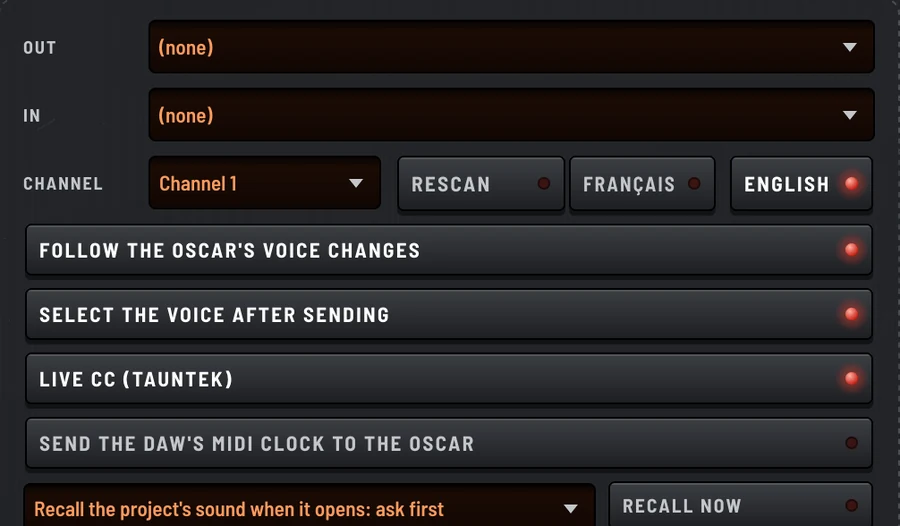
    A cable always goes from an OUT to an IN. Then, on the plug-in's Setup page: Out = the interface output cable 1 is plugged into, In = the input cable 2 is plugged into, channel 1 unless your OSCar is set otherwise.

    With an all-in-one USB-MIDI cable, the IN and OUT plugs are sometimes labelled the other way round: if nothing gets through, swap them. The plug-in remembers your ports.

    Mac USB MIDI interface MIDI OUT MIDI IN OSCar, rear panel MIDI IN MIDI OUT cable 1 cable 2
    Setup page: MIDI output, input and channel
    Setup page: the names shown depend on your interface.
  5. Two settings on the OSCar

    Program change, so the OSCar switches to the voice you click in the plug-in: hold SPACE (left of the keyboard) and press key −9. The −9 LED lights up.

    Patch CC dump, so the plug-in follows the voices chosen on the OSCar: hold TUNE/TRANSPOSE and press the "Enable patch CC dump" key, the last black key of the middle octave. The plug-in's CC DUMP light comes on at the next voice change.

    If the OSCar stops following after being switched off, do these two settings again.

    SPACEhold+key −9
    −12−924−9: the 2nd black key
    TUNE/TRANSPOSEhold+Enable patch CC dump
    −1224Enable patch CC dump
  6. Fetch your voices before anything else

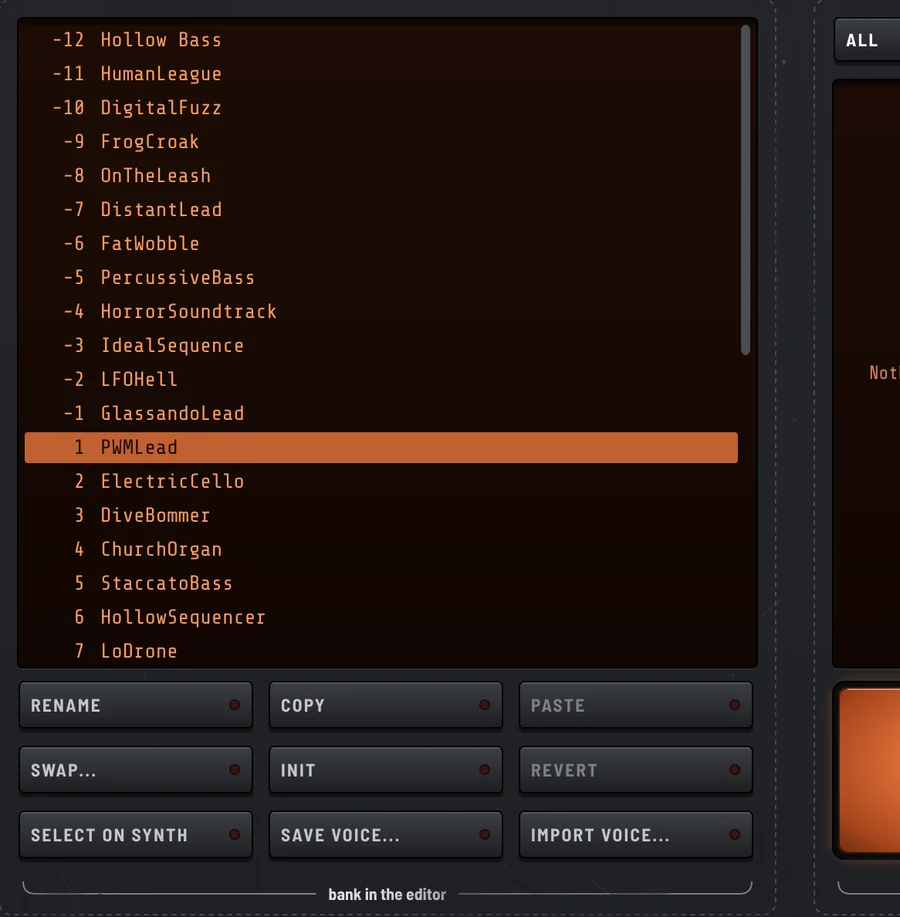
    With the plug-in open, on the OSCar: hold INSERT, press VOICE, then SPACE. The OSCar sends its 36 voices in under a second and the bottom of the window reads "Voices received (36)".

    A copy goes automatically to Documents › OXIde › Backups. That's your backup: everything reloads from the Banks page.

    Nothing shows up? The MIDI input chosen in step 4 isn't the right one, or cable 2 isn't plugged in properly.

    INSERThold+VOICEthenSPACE
    Banks page: the 36 voices received
    Banks page: the 36 voices received, with their names.

shortcuts

Tauntek shortcuts

Hold TUNE/TRANSPOSE, press a key on the keyboard, then let go. Click a key or a line of the list to find it.

ENABLE PATCH CC DUMPA# · octave 2
SettingReplaces the 36 voices (save a bank first)Overwrites a save area

other moves

  • Program change (on or off)SPACEhold+key −9
  • Send the voices to the plug-inINSERT+VOICEthenSPACE
  • Send the sequences or the waveformsINSERT+SEQorWAVEFORMthenSPACE
  • Send everythingINSERT+STOREthenSPACE

voices in memory

patch cc dump

pwm

playing

lfo

tips

Good to know

Keep a sound made on the OSCar

The plug-in only receives what is stored in the OSCar, not the sound you are tweaking. To keep a sound made on the synth itself:

  1. On the OSCar, store your sound in a memory you can overwrite (STORE, as usual).
  2. Hold INSERT, press VOICE, then SPACE: the plug-in receives the 36 voices with their exact values and shows "Voices received (36)".
  3. In the plug-in, click that memory's number: your sound shows up with all its settings.
  4. Banks page: "Rename" to give it a name, then "Save voice…" (Voices folder) or "Save bank as…" to keep all 36 voices.

With the patch CC dump on, the plug-in already shows the sound when you pick the memory on the OSCar, but knobs are within one step. To keep a sound, use INSERT, VOICE, SPACE.

The sound changes live

With Live CC on, every knob goes straight to the OSCar. It's only stored in its memory with "Send voices to synth", which writes all 36 voices at once.

The plug-in follows the OSCar

Pick a voice on the OSCar: the plug-in shows it as it plays, Duo or Arp mode included. This needs the patch CC dump (step 5).

Try things safely

The Generator plays every try on the OSCar without touching its memory. "Back to original" undoes, "Keep" puts the sound in the voice.

Arpeggiator in time with Logic

Voice page, midi clock block: turn Sync to MIDI and pick a Division (1/16, 1/8T…). Then either "Send the DAW's MIDI clock to the OSCar" in Setup, or Logic's own clock (File › Project Settings › Synchronization › MIDI, Destination = the OSCar's port, Clock box). Not both.

Play the OSCar from Logic

Select the OXIde track and turn on MIDI Thru (bottom of the window): your controller keyboard and the track's MIDI regions play the OSCar. Leave it off if you already play the OSCar through Logic's External Instrument plug-in.

Nothing gets lost

Every receive and every send is backed up. "Save voice…" files a voice in Voices, "Save bank as…" a bank in Banks. A double-click loads them back.

Mind the red keys

On the Tauntek keys page, the red keys (factory, B, C sounds, save areas) replace the OSCar's 36 voices. Save a bank first.

Nothing to route in Logic

In Logic, an AU instrument can't send MIDI to an interface. So OXIde talks to the OSCar through its own MIDI ports, chosen in Setup.

feedback

A bug, an idea?

Tell me on GitHub: the form is already laid out, you just fill it in. For a bug, the log from the Setup page helps a lot.

You need a GitHub account (free).

support

A coffee for the workshop

OXIde is free and will stay free. If it helps you, you can support its development on Ko-fi.

support oscar editor

Payment goes through Ko-fi. Open Ko-fi in a tab